Learn how to set up and use Online connect for Dynamics AX 2009.
ReadSoft Online Connect
is a program you can install on a local computer and use to perform a number of tasks, such as uploading invoices to
ReadSoft Online. It is an alternative to uploading invoices
using the web interface in
ReadSoft Online. Using
ReadSoft Online Connect, you can upload invoices
automatically, lessening the effort of uploading invoices one by one.
ReadSoft Online Connect
runs as a service in the background, so it is not necessary to start a program each time you want to upload invoices.
Instead, you simply move the files you want to upload to the folders you specify during the installation setup.
ReadSoft Online Connect
can be beneficial if you want to:
Upload large numbers of invoices.
Automate the process of uploading invoices.
Download output data from
Online Connect.
Automatically register
supplier
invoices in external systems.
Note that the user interface for
ReadSoft Online Connect
is currently only available in English.
Other flavors of
Online Connect
ReadSoft Online Connect
can display different settings, depending on which target system you use. Before you continue reading, make sure you choose
the
Online Connect
guide that matches your target system. If you don't find a match, read the
generic guide for
Online Connect.
Online Connect System requirements
ReadSoft Online Connect
supports the following operating systems:
Windows 10
Windows 8.1
Windows Server 2019 Standard
Windows Server 2016
Windows Server 2012 and Windows Server 2012 R2
ReadSoft Online Connect
requires the following:
Microsoft .NET Framework 4 (always required).
An HTTPS connection which uses port 443 (always required).
To use
Online Connect, you must make sure that your
account in
ReadSoft Online
is set up properly.
After you have created a new customer account, check the following:
In order to send invoices to Dynamics AX 2009, make sure Dynamics AX 2009 is
specified in the
target system service (Services > Target system) for the account.
You can also
add buyers
if your organizations has more than one buyer.
If you add a new buyer to the system after you configure
ReadSoft Online Connect
you must run the configuration wizard again and specify the new upload locations.
After you create a customer account with appropriate services and buyers, you are ready to install
ReadSoft Online Connect.
Installation
If you use a proxy connection to connect to the Internet, make sure you
specify the Windows proxy settings before you install
ReadSoft Online Connect.
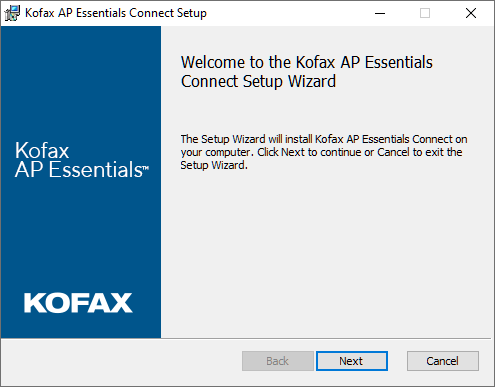
To install
ReadSoft Online Connect:
Download and run the setup file from the URL that corresponds to your location. Note that an HTTPS connection on
port 443 is required to download the installation. After the installation, the connection is required to receive program updates.
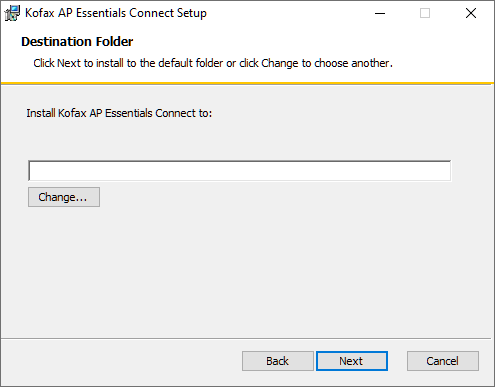
Specify the installation folder and click
Next to continue:
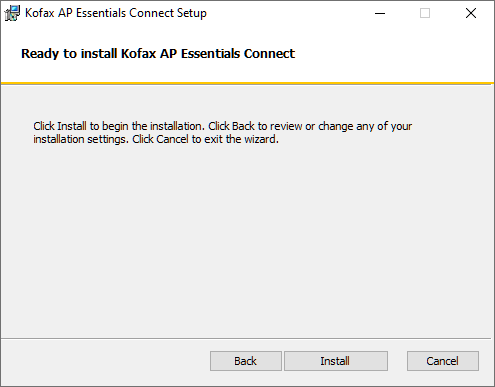
Click
Install to confirm your settings and install
ReadSoft Online Connect.
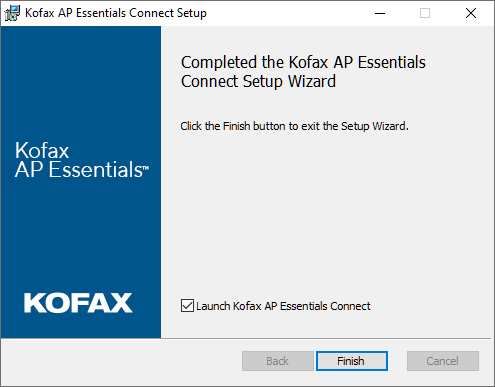
After the installation, click
Finish to launch
ReadSoft Online Connect
and run the setup wizard.
Troubleshooting the installation
When running the installation, some computers display a message that states, "Installation directory must be on a
local drive." If you receive this message, run this command as an administrator in Windows Command Prompt:
ReadSoft Online Connect
routinely downloads and installs updates automatically. This is required in order to ensure that
ReadSoft Online Connect
works properly and stays synchronized with the latest functionality and features in
ReadSoft Online.
In order for automatic updating to work properly, computers running
ReadSoft Online Connect
must have access to the local installation folder as well as the contents of the URL that corresponds to your location:
The first time you run
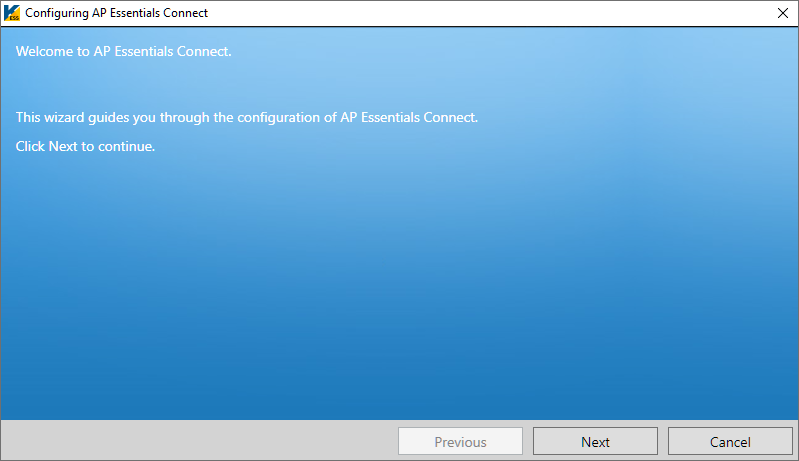
ReadSoft Online Connect, a setup wizard appears to help you
configure the initial settings. If you see the
ReadSoft Online Connect
dialog instead of the wizard, click
Configure to display the wizard.
The steps that appear in the wizard can vary, depending on the services that are enabled in
ReadSoft Online.
1. Click
Next to begin.
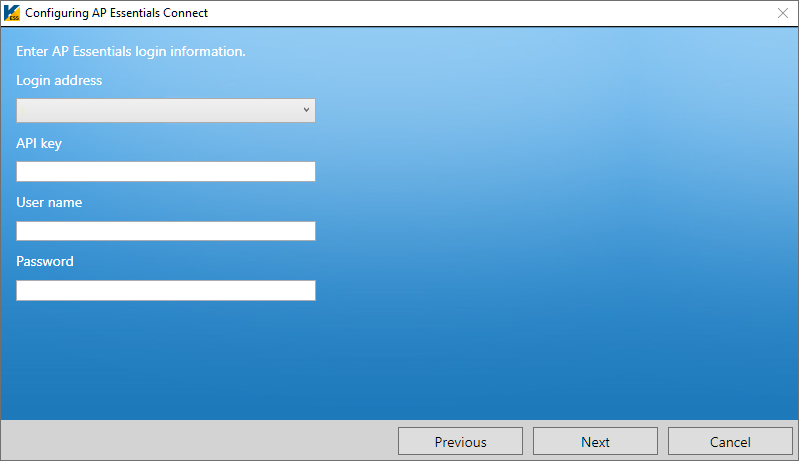
2. Use the information provided in your account-information email to fill in the Login address, Authorization key, User
name and Password.
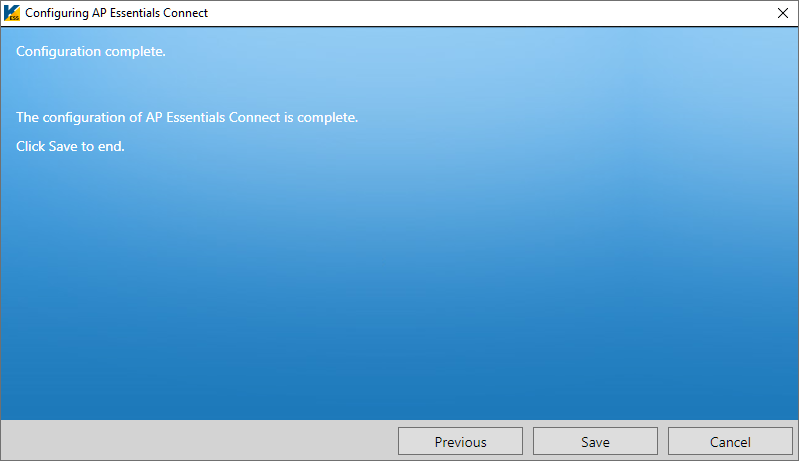
4. After you complete the required procedures from step 3 above, click
Save to save the settings and exit the wizard.
If you add new customers or buyers to the system or change the Target system service settings after
you configure
Online Connect, you must run the
configuration wizard again and specify the new upload locations.
If you want to change the Output image format from TIF to PDF (Target system configuration settings), you must process all of the invoices in the system before
you change this setting. Failure to do so will result in output errors.
Windows users that run
ReadSoft Online Connect
must have Read, Write and Modify permissions on all of the folders you specify in the setup.
Configure settings for uploading documents
Admin users must have the
Process documents privilege to see this dialog and upload documents using
ReadSoft Online Connect.
If the Image upload service is enabled, you can use
ReadSoft Online Connect
to upload invoices to
ReadSoft Online. Customers can upload their own invoices
for processing, and partner administrators can upload images on behalf of all of their customers.
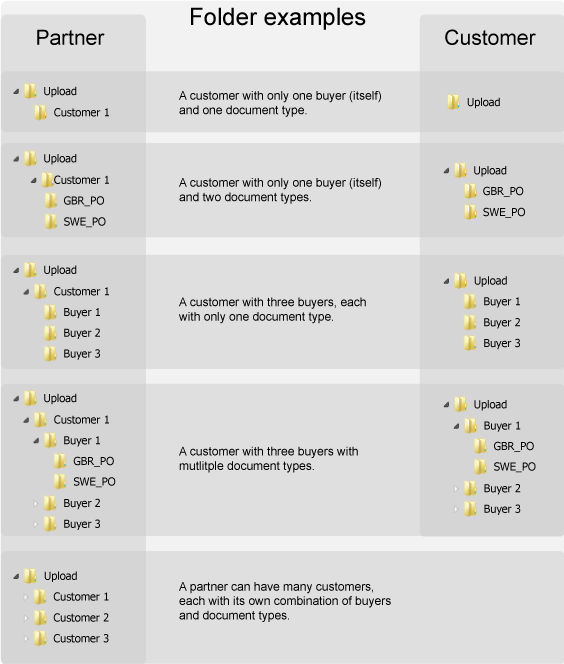
Ideally, you specify the Root folder, and then click
to automatically generate the subfolders. Subfolder are created for each
buyer defined in
ReadSoft Online. If no buyers are defined, the subfolder
has the same name as the organization (customer). These subfolders determine which buyer the documents are connected to when they
are uploaded to
ReadSoft Online. Additional subfolders are created for
each document type, if the buyer has more than one document type.
In this example, the Folder containing scanned images is named “Upload."
If you add new customers or buyers to the system after you configure
Online Connect, you must run the
configuration wizard again and specify the new upload locations.
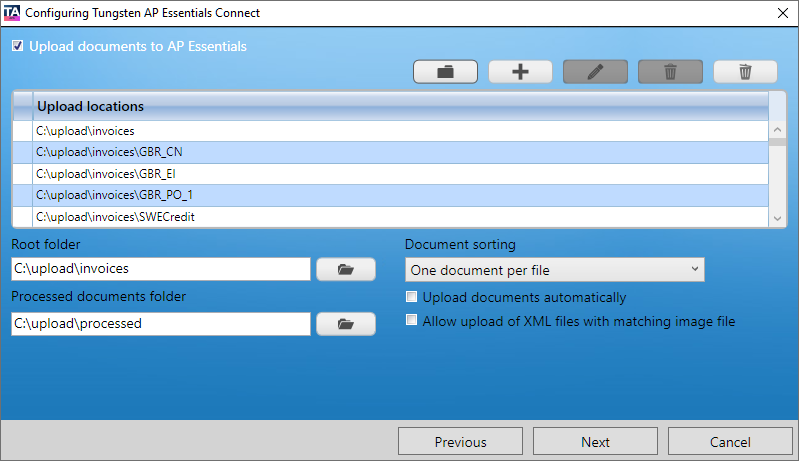
Upload documents to
ReadSoft Online – Specifies whether
you use
ReadSoft Online Connect
to upload invoices to
ReadSoft Online.
– Auto-generates the folder structure inside the Root folder.
– Displays a dialog which you can use to add a folder location manually.
– Displays a dialog which you can use to edit the selected folder location.
– Removes the selected folder from the Upload locations list. Note that the
folder is not deleted from the hard drive.
– Removes all of the folders from the Upload locations list. Note that the
folders are not deleted from the hard drive.
Upload locations – Displays
a list of locations where
ReadSoft Online Connect
looks for images to upload to
ReadSoft Online.
Processed documents folder –
Specifies the folder where you want to move the images after they have been uploaded.
Document sorting -
Determines how many documents each file can contain. See Help for more information about
page
separation.
Upload documents
automatically - When this setting is selected, files located in subfolders of the Folder list are automatically
uploaded as soon as they are detected. If this setting is not selected, you must click the Upload documents button in the
ReadSoft Online Connect
interface to manually upload images.
Allow upload of XML files with matching
image file - Normally, when you upload XML invoices,
ReadSoft Online
automatically creates an invoice image from the XML data, so users can visualize the data during verification. If
your solution uses XML invoices and an invoice image file, select this setting, so you can upload both of these files, and
ReadSoft Online
will display the original invoice image during verification, instead of creating one from the XML data. This is
helpful because it offers the superior data capture of XML, while displaying the original invoice image, which might contain
additional information that is not available in the XML. Make sure that the corresponding file pairs have the same file name.
Configure settings for sending documents to Dynamics AX
If Dynamics AX is specified as your
target system, you can use
ReadSoft Online Connect
to automatically register invoices with Microsoft Dynamics AX. You can also use
ReadSoft Online Connect
to import supplier, account currency and coding information from Dynamics AX to
ReadSoft Online.
See the
technical
description for information about configuring Dynamics AX for use with
ReadSoft Online.
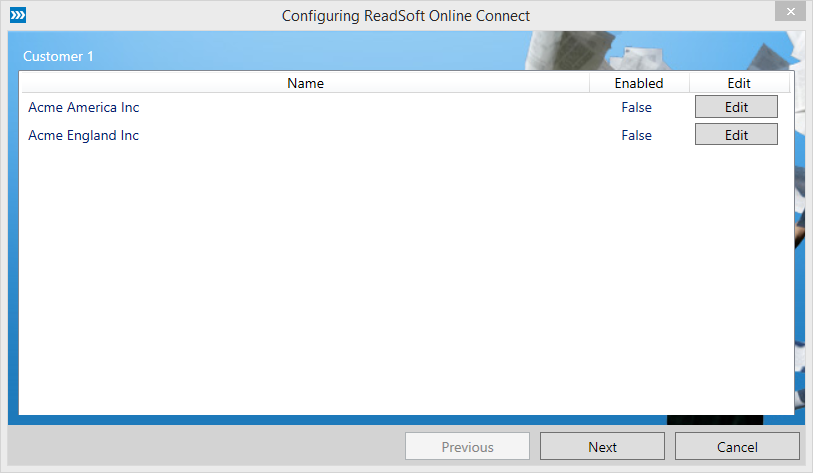
If no buyers are defined, skip to the next step. Otherwise, click the
Edit button that corresponds to the buyer you want to adjust.
Figure 1. One or more buyers can appear in this view depending on your setup and privileges.
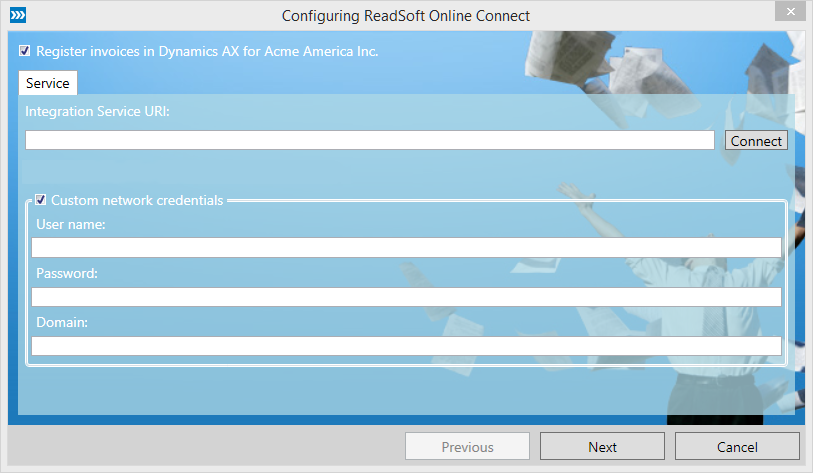
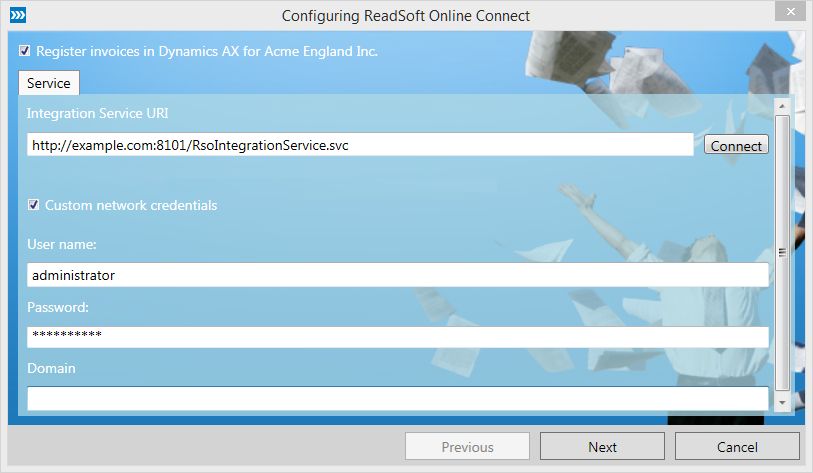
Select
Register invoices in Dynamics AX and specify the
Integration Service URI using the format
http://serverName:8101/RsoIntegrationService.svc
Make sure the port number matches the HTTP port number of the
ReadSoft Online
integration site in IIS. You can find the port in the Bindings settings in Windows IIS.
If your solution requires you to specify network credentials, select
Specify credentials for network access, and specify the User name,
Password and Domain. The Windows user you specify here must have access to the Integration Service URI.
After you specify the
Service settings, click
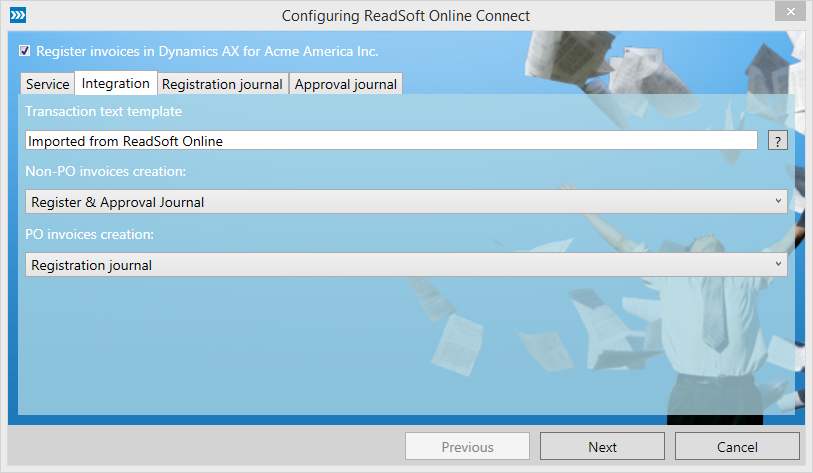
Connect. If the connection is successful, additional integration settings
appear. The settings that appear can vary, depending on your setup.
Specifies the
template for the Release date comment field in Dynamics AX.
Non-PO invoice creation
Determines whether non-PO Invoices are posted to Register & Approval journal or
Invoice journal.
PO Invoice creation
Determines the method you want to use to create purchase order invoices.
Registration journal - creates the invoice in a registration
journal, using the referencing order number in the appropriate field. Typically, you choose this setting for non-PO invoices.
Posting invoice - creates the invoice on the purchase order
itself. If you choose this option, additional settings appear for Vendor invoices.
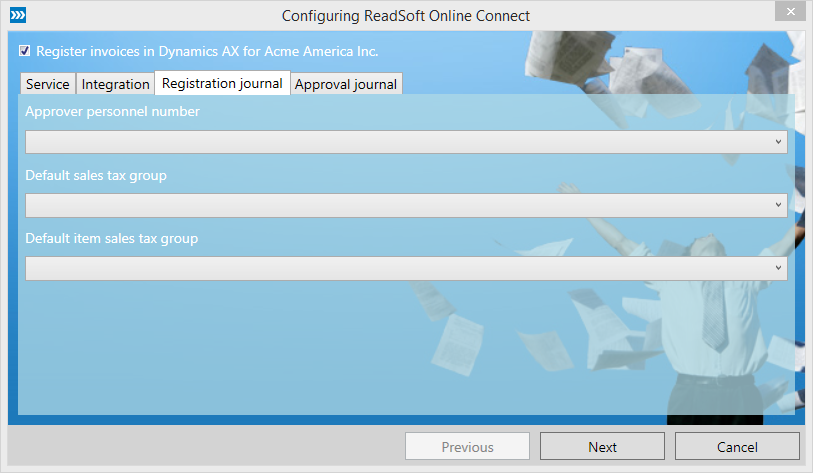
If you selected Register & Approval Journal
in the previous step, adjust the Registration journal settings for non-PO invoices.
Approver personnel number
The default approver to use if none is set during verification.
Default sales tax group
The default sales tax group to use if none is set during verification (Optional).
Default item sales tax group
The default item sales tax group to use if none is set during verification (Optional).
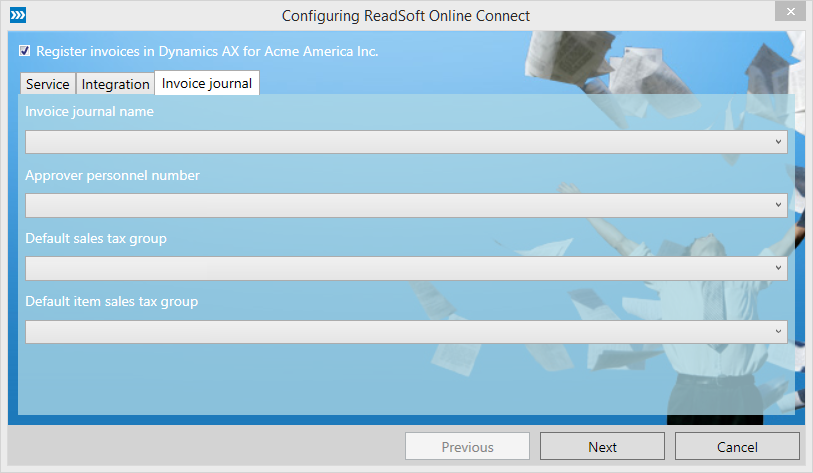
If you selected
Invoice journal in step 4, adjust the
Invoice journal settings for non-PO invoices.
Invoice journal name
Specifies the name of the invoice journal that you want to post invoices to.
Approver personnel number
The default approver to use if none is set during verification.
Default sales tax group
The default sales tax group to use if none is set during verification (Optional).
Default item sales tax group
The default item sales tax group to use if none is set during verification (Optional).
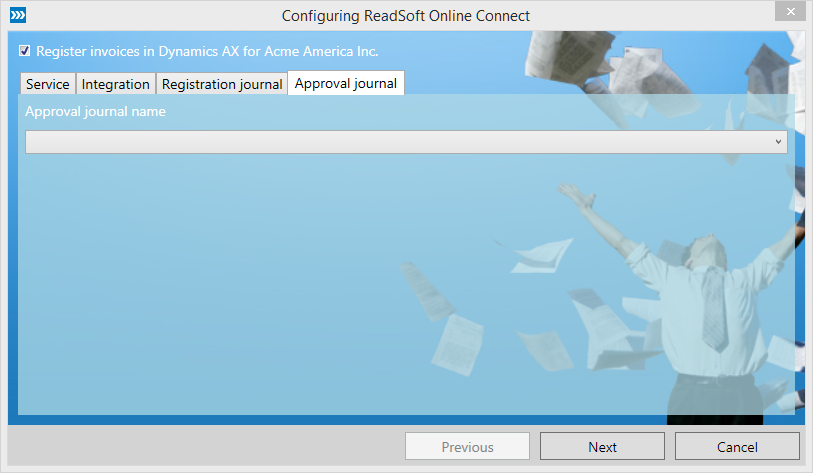
Adjust the
Approval journal for non-PO invoices. These settings only appear when
Workflow
services are enabled.
Approval journal name
The approval journal name to use to post an invoice.
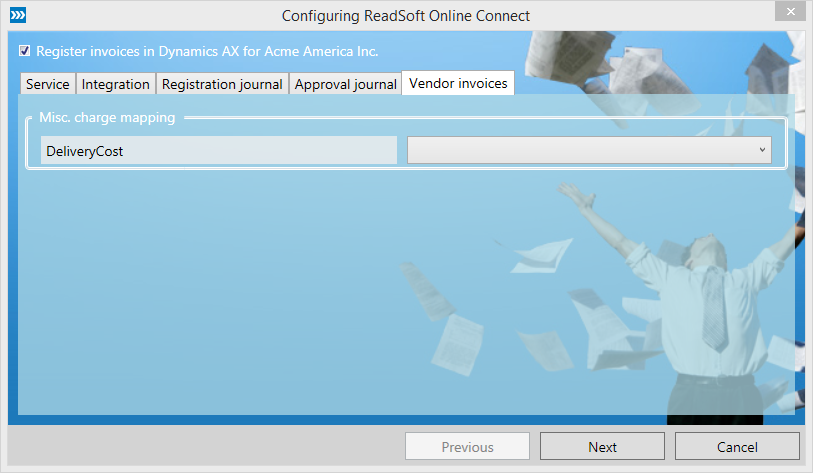
If you specified Vendor invoice in the PO invoice creation setting, the
Vendor invoices tab is available.
Misc. charge mapping
Maps various fields in
ReadSoft Online
(left column) with vendor-invoice fields in Dynamics AX (right column).
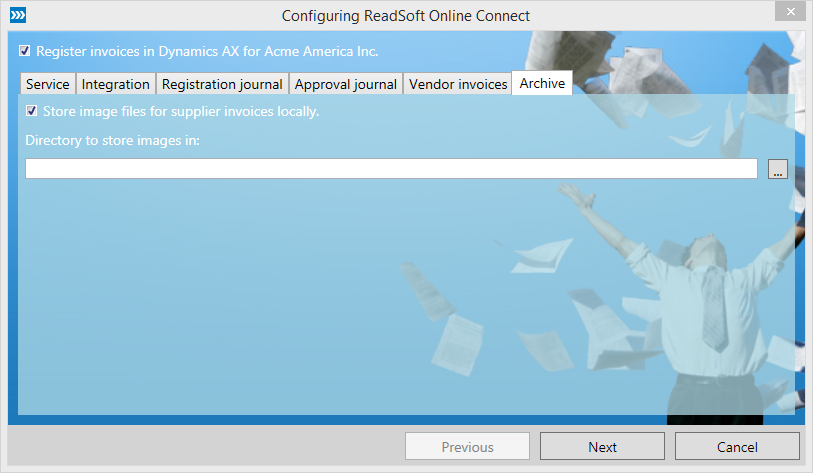
Adjust the Archive settings. These settings only appear if you the
Storage
service is disabled.
Store image files for supplier invoices
locally
Determines whether invoice images are saved to a local folder.
Directory to store image in
Specifies the folder where you want to save the invoice images.
Click
OK after you complete your adjustments.
Using Online Connect with Dynamics AX 2009
After following the procedures above to setup Online Connect, you are ready to use it in
production.
Uploading documents using Online Connect
You can upload documents to
ReadSoft Online
in these
supported file formats using
Online Connect:
If you selected Upload documents automatically when configuring
ReadSoft Online Connect
for uploading documents, no interaction is required. When files are moved to the subfolder(s) of the location you
specified in the configuration, they are automatically uploaded.
ReadSoft Online Connect
runs continuously in the background as a Windows service and periodically checks (every 15 minutes by default) for
new files to upload. When new files are found, they are uploaded automatically. Even if you restart the computer,
ReadSoft Online Connect
runs automatically in the background with no need for interaction. If a problem occurs during the upload, the upload
operation will timeout after 10 minutes.
Most users use automatic uploading, and set up their scanners to save files directly in the appropriate subfolders
that are created during the configuration.
If you have more than one document type, but you place files in the parent folder of the document type folders,
the files are uploaded and processed using the Default document type specified in the
Extraction service settings.
Manual uploading
If you did not select
Upload documents automatically when configuring
ReadSoft Online Connect, you can upload files manually
at your convenience:
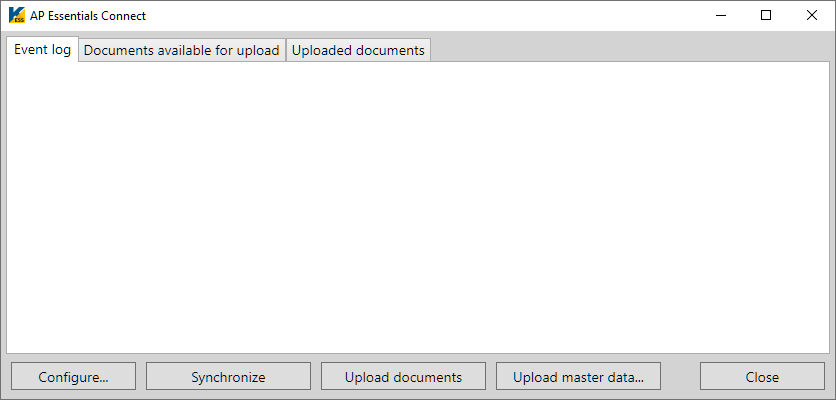
Start
ReadSoft Online Connect
from the Windows Start menu.
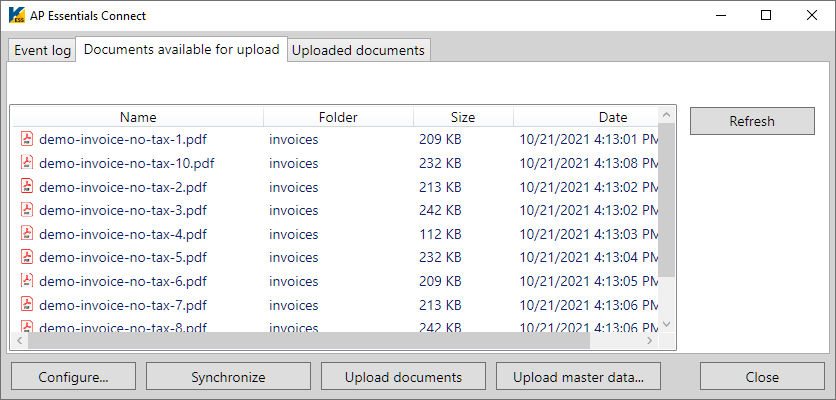
Move or scan invoice image files to an appropriate subfolder of the location you specified in the configuration,
and click
Refresh so you can see the files in the list. You can also click the
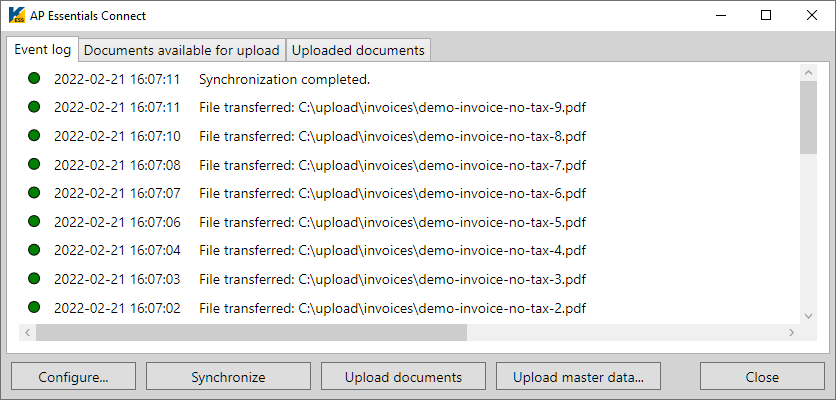
Event log tab to check for errors.
If you do not see files in the list, make sure you place the files in a subfolder that
corresponds to an organization or buyer in
ReadSoft Online.
Click
Upload documents. You can click
Refresh to see that the images have uploaded or use the Event log to
monitor the progress of your uploads.
Troubleshooting Online Connect for Dynamics AX 2009
Generic issues
If you have problems running
ReadSoft Online Connect:
Make sure you have access to the URL that corresponds to your location:
You can click the links above to test if you have access. Click the links using the same computer that runs
ReadSoft Online Connect. If you receive a 404 error, you
do not have access.
Make sure you can download the files that are listed in the page that is displayed when you click one of the links
above. To do this, replace
"Deployment.manifest" in the URL with one of the file names in the list.
Log in to
ReadSoft Online
using the same computer that runs
ReadSoft Online Connect
to make sure you can connect to
ReadSoft Online.
If you use a proxy connection, make sure the settings are applied to the same user/account that runs
ReadSoft Online Connect. By default, this is a local
System account. To test this, access
ReadSoft Online
using a location above, then change the
ReadSoft Online Connect
user to the same Windows user you tested with.
Document management directory does not exist
An error message that the
"Document management directory does not exist" can appear in:
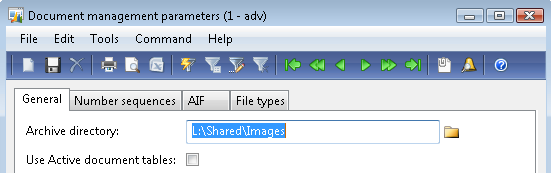
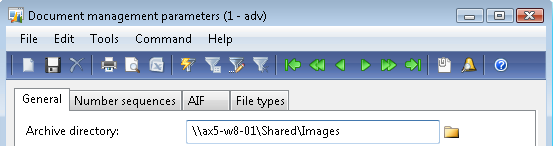
The directory does not exist in Dynamics AX. Make sure that the folder
that is specified in the Archive directory setting exists.
AOS cannot access the directory. If the Archive directory is located on a
different computer than the AOS service, you must share the folder and reference its shared path.
The integration user does not have access to the directory. Make sure that
the user that performs the integration has read/write access to the folder that is specified in the Archive directory setting in
Dynamics AX (Document management parameters dialog).
You can specify the integration user in two different places:
The
ReadSoft Online
configuration wizard.
Figure 2. In this example, you can see that
ReadSoft Online
is run using the Administrator user.
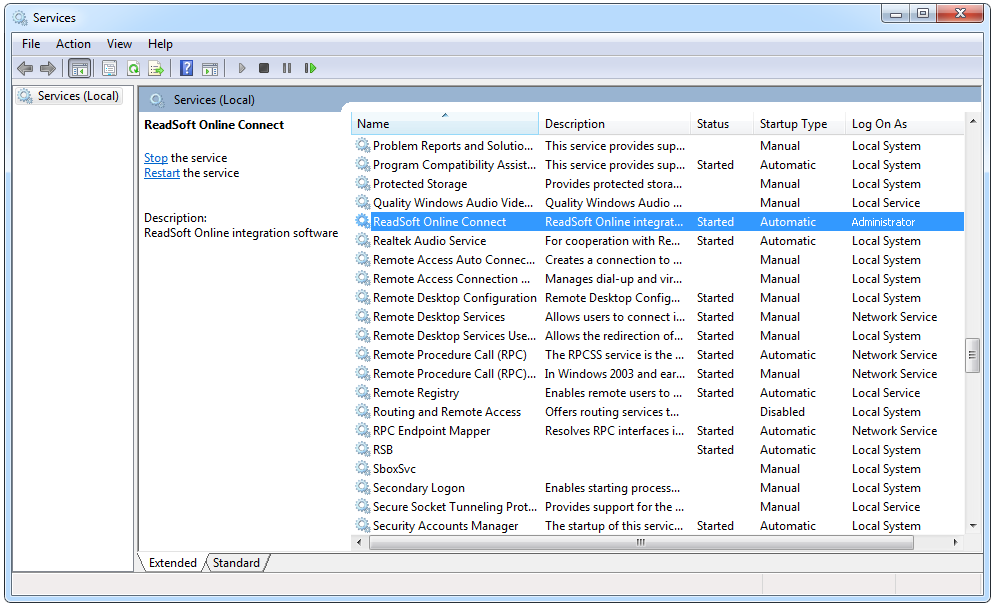
The
ReadSoft Online
Windows service.
Figure 3. In this example, you can see that the
ReadSoft Online
service is run using the Administrator user.
Multiple AOS instances on the same Dynamics AX server
To use the Dynamics AX 2009 integration with multiple AOS instances, follow this procedure.
From the
Start menu in Windows, run
Microsoft Dynamics AX 2009 Configuration on the computer where IIS is installed for the Dynamics AX
integration.
Select
Business Connector in the
Configuration Target box.
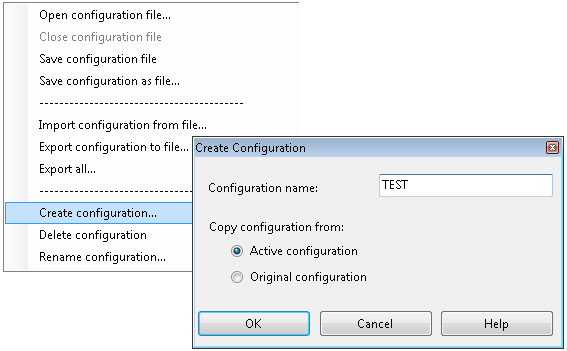
Make sure there is a configuration for the desired AOS instance.
If the configuration is missing, click
Manage > Create configuration.
After you set up the configuration, make sure that you select the configuration that you just created in the
Configuration box.
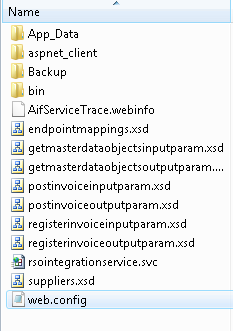
Open the web.config file that is located in the
RsoIntegrationService folder that you use for IIS.
You can also access the web.config file from within Dynamics AX by navigating to the
Services, selecting the
RsoIntegrationService and clicking
Configure to open the web.config file.
Find the BUSINESS_CONNECTOR_CONFIGURATION key, and change its value to the configuration you selected in step
three.
When generating services from Dynamics AX (Basic > Setup > Application Integration Framework > Services) Dynamics AX overrides the web.config file, the BUSINESS_CONNECTOR_CONFIGURATION key can be reset
by Dynamics AX. Therefore, it is important that you remember to reset the value after you generate the services.

 to automatically generate the subfolders. Subfolder are created for each
buyer defined in
ReadSoft Online. If no buyers are defined, the subfolder
has the same name as the organization (customer). These subfolders determine which buyer the documents are connected to when they
are uploaded to
ReadSoft Online. Additional subfolders are created for
each document type, if the buyer has more than one document type.
to automatically generate the subfolders. Subfolder are created for each
buyer defined in
ReadSoft Online. If no buyers are defined, the subfolder
has the same name as the organization (customer). These subfolders determine which buyer the documents are connected to when they
are uploaded to
ReadSoft Online. Additional subfolders are created for
each document type, if the buyer has more than one document type.
 – Displays a dialog which you can use to add a folder location manually.
 – Displays a dialog which you can use to edit the selected folder location.
 – Removes the selected folder from the Upload locations list. Note that the
folder is not deleted from the hard drive.
– Removes the selected folder from the Upload locations list. Note that the
folder is not deleted from the hard drive.
 – Removes all of the folders from the Upload locations list. Note that the
folders are not deleted from the hard drive.
– Removes all of the folders from the Upload locations list. Note that the
folders are not deleted from the hard drive.