
Configure AP Essentials Connect for purchase-order data upload
If the Purchase order service is enabled in AP Essentials Connect, you can use AP Essentials Connect to upload purchase-order data to AP Essentials.
For the Dynamics AX 2012 integration, purchase-order data is
synchronized automatically, so you do not need AP Essentials Connect
to upload purchase-order data.
The availability of this dialog varies, depending on your role and setup.
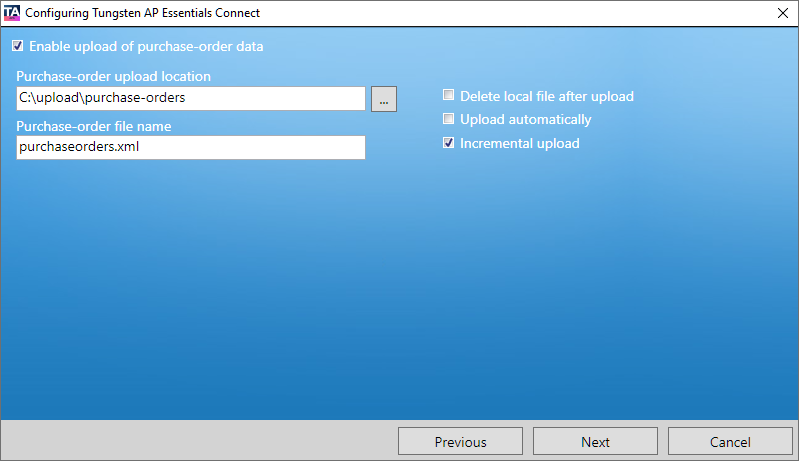
- Enable upload of purchase-order data – Specifies whether you use AP Essentials Connect to upload purchase-order data to AP Essentials.
- Purchase order upload location – Specifies the location where AP Essentials Connect looks for purchase-order data to upload to AP Essentials.
For partner accounts, AP Essentials Connect automatically creates subfolders for each customer account. If a customer account has buyers, AP Essentials Connect creates subfolders for each buyer. After AP Essentials Connect uploads the XML files, files that are successfully imported are moved to the Imported folder. Files that cannot be imported are copied to the Error folder.
- Purchase-order file name – Specifies the name of the XML file that contains the purchase-order data that you want to import.
- Delete local file after upload – If selected, the XML file is deleted after it is imported successfully instead of being moved to the Imported folder.
- Upload automatically – If selected, AP Essentials Connect checks for new files to import every minute. If you do not select this setting, you can import XML files manually.
- Incremental upload – When selected,
AP Essentials Connect compares the latest XML file with the previous XML file that was uploaded,
and uploads only the new changes. For example, if you upload a PO file that
contains 100,000 purchase orders, and then you upload a new file with two
additional purchase orders (100,002 in total), AP Essentials Connect compares the files and uploads only the two new purchase orders. This saves
time and decreases network traffic significantly. AP Essentials Connect uses incremental upload for files that exceed 30 MB in size, even if you do not select this setting.