
Configure AP Essentials Connect
Before you begin, ensure your AP Essentials account is properly set up and your target system settings are correctly configured. After you create a new customer account, check the following:
- The target system is specified () for the account.
-
You can also add buyers if your organization has more than one buyer.
After you create a customer account with appropriate services and buyers, you are ready to configure AP Essentials Connect.
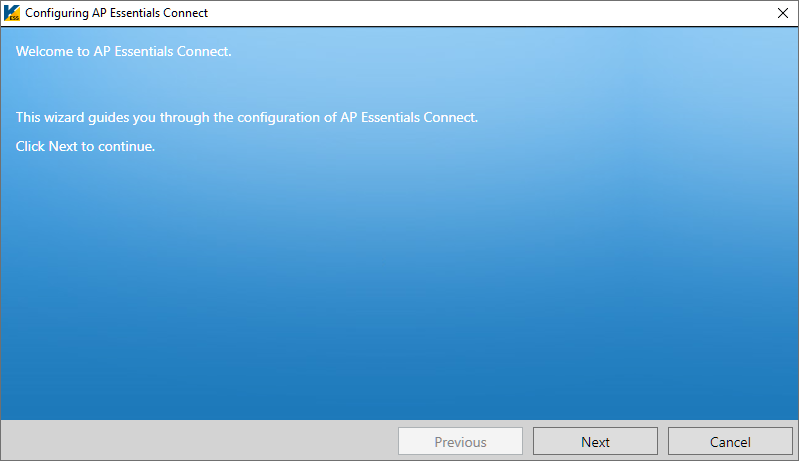
The first time you run AP Essentials Connect, a setup wizard appears to help you configure the initial settings. If you see the AP Essentials Connect dialog instead of the wizard, select Configure to display the wizard.
The steps that appear in the wizard may vary, depending on the services that are enabled in AP Essentials.
-
Select Next to begin.
-
Enter the following information from your account-information email: Login address, Authorization key, User name, and Password.
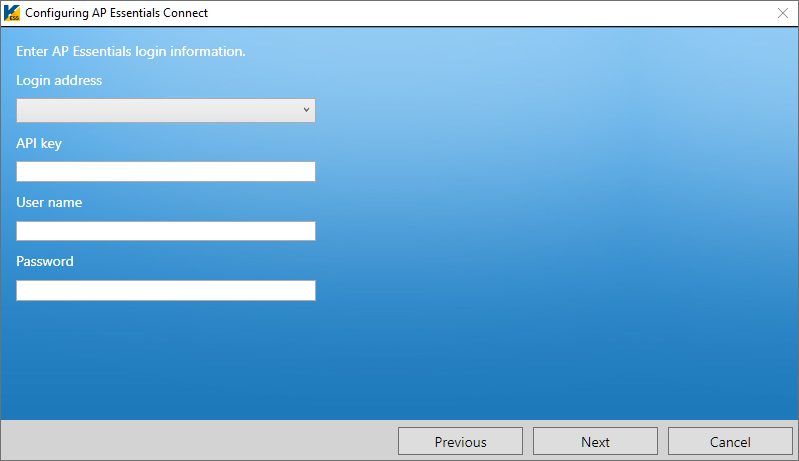
Login address - https://services.readsoftonline.com – for users in Europe.
- https://services-us.readsoftonline.com – for US users.
- https://services-au.readsoftonline.com – for users in Australia.
Authorization key (API Key) Obtain the key from your account-information email or from an administrator. Administrators can find the key in the Target system view in Admin Center. User name The user name you use to log in to AP Essentials.
The user must be a customer admin or customer user. If only one target system is enabled on the partner level, partner admins and partner users are also supported. Group users are not supported.
Password The password for User name. - Configure optional dialog boxes that may appear, depending on the services that are enabled in AP Essentials.
-
After you complete the required procedures in step 3, select Save to save the settings and exit the
wizard.
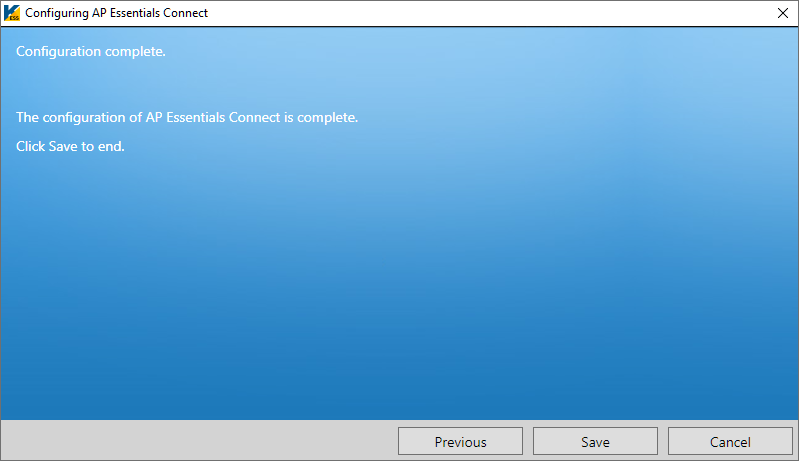
After you complete the configuration, you can use AP Essentials Connect.
If you want to change the Output image format from TIF to PDF (Target system configuration settings), you must process all documents in the system before you change this setting. Failure to do so will result in output errors.
Windows users who run AP Essentials Connect must have Read, Write, and Modify permissions on all folders you specify in the setup.