
Configure AP Essentials Connect for document upload
If the Image upload service is enabled, you can use AP Essentials Connect to upload documents to AP Essentials. Customers can upload their own documents for processing, and partner administrators can upload images on behalf of all of their customers.
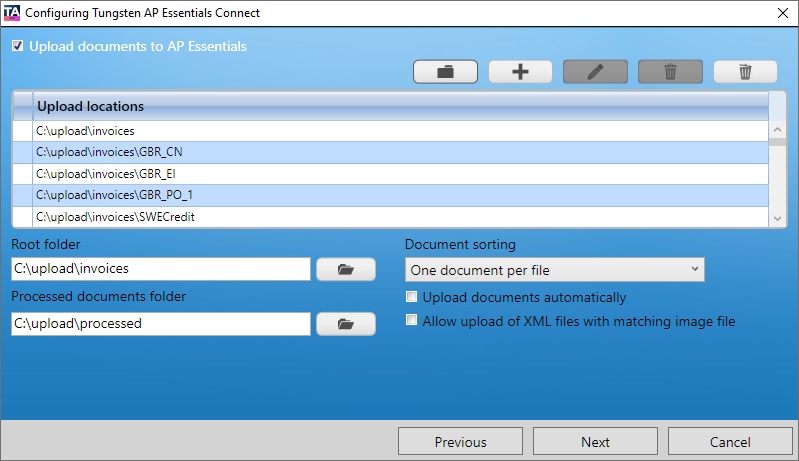
Ideally, you specify the Root folder, and then select  to automatically generate the
subfolders. Subfolders are created for each buyer defined in AP Essentials. If no
buyers are defined, the subfolder has the same name as the organization (customer
account). These subfolders determine which buyer the documents are connected to when
they are uploaded to AP Essentials.
Additional subfolders are created for each document type, if the buyer has more than
one document type.
to automatically generate the
subfolders. Subfolders are created for each buyer defined in AP Essentials. If no
buyers are defined, the subfolder has the same name as the organization (customer
account). These subfolders determine which buyer the documents are connected to when
they are uploaded to AP Essentials.
Additional subfolders are created for each document type, if the buyer has more than
one document type.
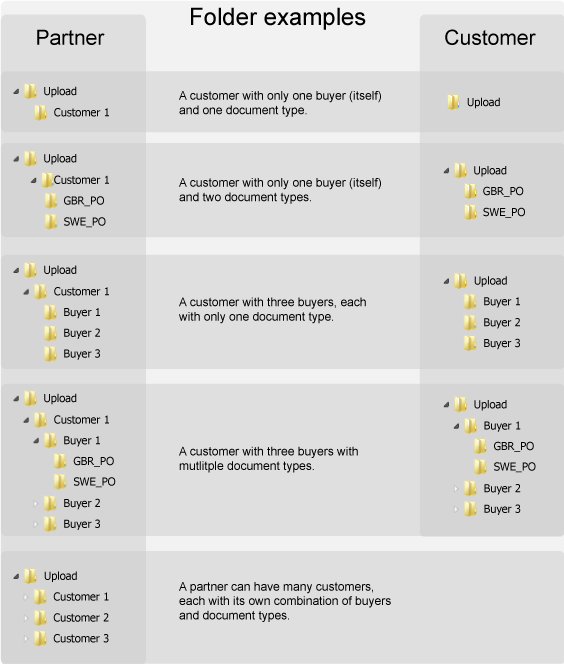
In this example, the Folder containing scanned images is named "Upload."
- Upload documents to AP Essentials – Specifies whether you use AP Essentials Connect to upload documents to AP Essentials.
- –
Auto-generates the folder structure inside the Root folder.
 – Displays a dialog that
you can use to add a folder location manually. When you specify the
folder location, you can optionally associate a buyer/seller and
document type with the folder. Partner administrators can also specify a
customer account.
– Displays a dialog that
you can use to add a folder location manually. When you specify the
folder location, you can optionally associate a buyer/seller and
document type with the folder. Partner administrators can also specify a
customer account.  –
Displays a dialog that you can use to edit the selected folder location.
–
Displays a dialog that you can use to edit the selected folder location.  –
Removes the selected folder from the Upload locations list. Note that
the folder is not deleted from the hard drive.
–
Removes the selected folder from the Upload locations list. Note that
the folder is not deleted from the hard drive.  – Removes all of
the folders from the Upload locations list. Note that the folders are
not deleted from the hard drive.
– Removes all of
the folders from the Upload locations list. Note that the folders are
not deleted from the hard drive. - Upload locations – Displays a list of locations where AP Essentials Connect looks for images to upload to AP Essentials.
- Root folder – Specifies the root location of the document upload location.
- Processed documents folder – Specifies the folder where you want to move the images after they have been uploaded.
- Document sorting - Determines how many documents each file can contain. See Help for more information about page separation.
- Upload documents automatically - When this setting is selected, files located in subfolders of the Folder list are automatically uploaded as soon as they are detected. If this setting is not selected, you must select the Upload documents button in the AP Essentials Connect interface to manually upload images.
- Allow upload of XML files with matching image
file - Normally, when you upload XML documents, AP Essentials automatically creates a document image from the XML data, so users
can visualize the data during verification. If your solution uses XML
documents and a document image file, select this setting, so you can
upload both of these files, and AP Essentials will display the original document image during verification, instead
of creating one from the XML data. This is helpful because it offers the
superior data capture of XML, while displaying the original document
image, that might contain additional information that is not available
in the XML. Ensure the corresponding file pairs have the same file name.This setting does not apply to XRechnung documents. XRechnung documents always use a system-generated document image created from the XML data, even if a matching image file is present in the input folder.