
Configure AP Essentials Connect for master data upload
Master data is business information—such as supplier address information or other identifying information—that is used by multiple systems and applications. AP Essentials can use master data from an external system to provide information when processing documents. For example, AP Essentials can use supplier master data to populate the Supplier list during verification.
If the Master data service is enabled, you can use AP Essentials Connect to automatically upload master data to AP Essentials.
Ideally, you set up your financial system to export master data (in the XML format outlined below) to a folder that you specify in the AP Essentials Connect settings. AP Essentials Connect then checks the folder every minute for new files to import.
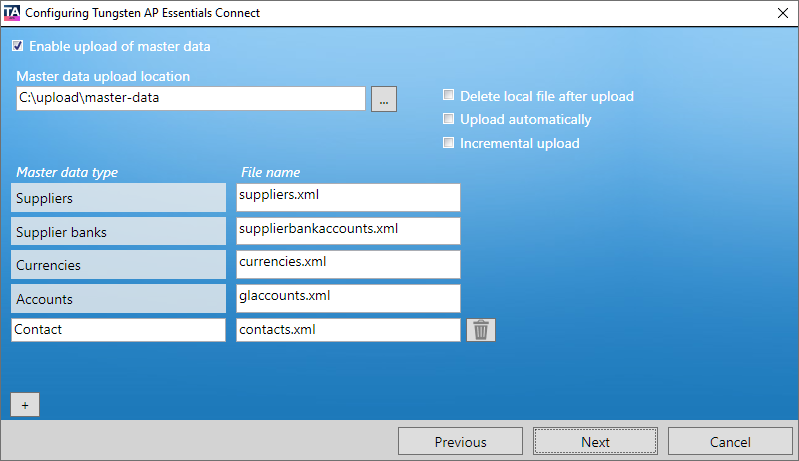
The settings and master data types that appear in this dialog can vary, depending on other settings.
- Enable upload of master data –
Specifies whether you use AP Essentials Connect to upload master data to AP Essentials.
You must be an administrator to upload buyers.
-
Master data upload location – Specifies the location where AP Essentials Connect looks for master data to upload to AP Essentials.
If you are a partner, subfolders are automatically created for each customer account. If a customer account has buyers defined, subfolders are created for each buyer too. Master-data files that are put in the correct corresponding folders are automatically uploaded by AP Essentials Connect. After AP Essentials Connect uploads the master data, files that are successfully imported are moved to the Imported folder. Files that cannot be imported are copied to the Error folder.
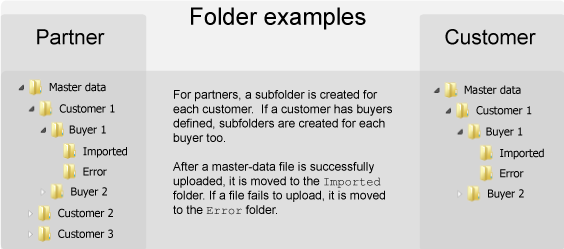
In this example, the Folder containing master data to upload is named "Master data."
-
Master data type – Specifies the type of master data you want to import. This is also the internal name that you reference, for example, when adding custom fields to a document type. AP Essentials supports these master data types by default:
-
Suppliers
-
Supplier banks
-
Currencies
-
Cost centers
-
Supplier cost centers
-
Projects
-
Accounts (General-ledger accounts) - Only available when the Workflow service is enabled.
-
Field values
-
Customers, add or update - Only available when using accounts receivable document processes. Incremental upload is always applied to customer master data that is automatically uploaded through Windows services.
-
Customers, delete - Only available when using accounts receivable document processes. This master data type is unique because it deletes the specified items (customers) rather than uploading them.
-
- File name – Specifies the name of the XML file that contains the master data that you want to import.
- Delete local file after upload – If selected, the XML file is deleted after it is imported successfully instead of being moved to the Imported folder.
- Upload automatically – If selected, AP Essentials Connect checks for new files to import every minute. If you do not select this setting, you can import XML files manually.
-
Incremental upload – When selected, AP Essentials Connect compares the latest XML file with the previous XML file that was uploaded, and uploads only the new changes. This saves time and decreases network traffic significantly.
Example
If you upload an XML file that contains 100 suppliers, and then you upload a new file with two new suppliers (102 in total), AP Essentials Connect compares the files and uploads only the two new suppliers. Conversely, if the second upload contains only 50 suppliers, AP Essentials deletes the missing suppliers from the master data, keeping only the 50 suppliers that are specified in the new XML file.
AP Essentials Connect uses incremental upload for files that exceed 30 MB in size, even if you do not select this setting.If you process documents using accounts receivable processes, incremental upload is always applied to customer master data that is automatically uploaded.
Master data formats
AP Essentials can consume several types of master data. Use the file names specified below when creating the master-data files that you save in the Folder containing master data to upload. You can select the file names to see the XML schema that is used to validate the master data.
| Type | File name (schema) |
|---|---|
| Suppliers | suppliers.xml |
| Cost centers | costcenters.xml |
| Supplier cost centers | suppliercostcenters.xml |
| Supplier banks | supplierbankaccounts.xml |
| Currencies | currencies.xml |
| Projects | projects.xml |
| Accounts | glaccounts.xml |
| Field values * | fieldvalues.xml |
* Although field values are not technically master data, you can upload them using AP Essentials Connect. Field-value data enables you to specify valid field values for interpreted fields. If a field does not validate according to the specification in fieldvalues.xml, it receives a validation error in AP Essentials Office.
Sample
The XML data that you submit for one supplier can look like this, for example:
<?xml version="1.0"?>
<Suppliers xmlns:xsi="http://www.w3.org/2001/XMLSchema-instance">
	<Supplier>
		<SupplierNumber>00001</SupplierNumber>
		<Name>Polychemtex Inc.</Name>
		<Description>Supplier of quality goods and services at low prices.</Description>
		<TaxRegistrationNumber>GB999999973</TaxRegistrationNumber>
		<OrganizationNunmber>5561947986</OrganizationNunmber>
		<Street>1 Main Street</Street>
		<PostalCode>DH9OTB</PostalCode>
		<City>Townsville</City>
		<CountryName>UK</CountryName>
		<PaymentTerm>30 Days</PaymentTerm>
		<PaymentMethod>Direct Deposit</PaymentMethod>
		<CurrencyCode>GBP</CurrencyCode>
		<Blocked>0</Blocked>
		<TelephoneNumber>4960123</TelephoneNumber>
		<FaxNumber>4960122</FaxNumber>
		<TaxCode>012345</TaxCode>
	</Supplier>
</Suppliers>
Folder naming conventions for master data
By default, AP Essentials Connect does not allow special characters, such as dots and slashes, in folder names that you use for uploading and downloading master data. When AP Essentials Connect encounters a special character, it is automatically replaced with an underscore when creating folders. However, you can override the default behavior by adjusting the AP Essentials Connect configuration file, ReadSoft.Connect.Host.exe.config (default location: C:\Program Files (x86)\Tungsten\AP Essentials Connect\). This is helpful, for example, if you have an organization that contains special characters in its name, and you require folder names other than the default naming convention.
To override the default behavior, you use XML to specify the incoming name (object name) and the outgoing name (folder name). For example, assume you have a customer account named "example.com". When AP Essentials Connect makes folders for example.com, it changes the name to "example_com". By inserting the following XML in ReadSoft.Connect.Host.exe.config, you can preserve the original name:
<FolderNameSubstitutions>
	<FolderNameSubstitution>
		<ObjectName>example.com</ObjectName>
		<FolderName>example.com</FolderName>
	</FolderNameSubstitution>
</FolderNameSubstitutions>
In the next example, the dot is changed to a dash instead of the default (underscore).
<FolderNameSubstitutions>
	<FolderNameSubstitution>
		<ObjectName>example.com</ObjectName>
		<FolderName>example-com</FolderName>
	</FolderNameSubstitution>
</FolderNameSubstitutions>